 Helvia Studio
Your company in 3D,
inside Nintex K2
User guide
Build a living space from a template, place your rooms, people and objects, and run it in K2 as a form where each person sees their own tasks.
Contents
- Before you startWhat Helvia is, K2 requirements
- Create an appAccount and templates
- The appTitle, description, live floor
- Workflows and K2 formsStart forms, workflow filter
- RoomsWhere each step happens
- PeopleK2 accounts and roles
- Request typesIcons, colours, steps
- Floor planRooms, 125 objects, life
- K2 packageDownload, deploy, parameters
- Using the appWhat people see and do
- Designing a good spaceMethod and layouts
- Data and securityWhat is read, by whom
- TroubleshootingMessages and fixes
01Before you start
Helvia turns your departments, your people and your K2 workflows into a living 3D space. Each request is a folder that travels from room to room as its steps are done. You design the space in Helvia Studio, then download one K2 package: inside K2, the space is a form where each person sees their own tasks and handles them with the real K2 forms.
Two modes
Demo
Simulated requests move by themselves. Visitors pick a person in the menu and make simulated decisions. Nothing is read from K2: perfect to present the idea or test a layout.
Live
Inside K2, with the session of the person signed in. Their tasks come from K2, their K2 forms open in the panel, and the decisions are real.
What you need in K2 (Live)
- The Workflow REST API enabled in K2 Management › Integration › APIs: each person's tasks, their forms and their decisions.
- SmartObject OData with the worklist SmartObject published (Workflow Reports › Workflow General ›
Activity Instance Destination), to show everyone's tasks on the map. Without it, each person sees only their own tasks. - The K2 start forms of your request types, and the K2 accounts of the people.
- The right to deploy a package (K2 Management › Packages, or the Deploy-Package command).
Words used in this guide
| Word | Meaning |
|---|---|
| App | One space designed in the Studio: its rooms, people, request types and floor. |
| Room | A department or a place. Each workflow step happens in a room. |
| Request type | A kind of request (Admission, Purchase request…), with its K2 start form, icon, colour and steps. |
| Folder | One request in progress, shown as a folder in the room of its current step. |
| Task | The K2 task of a person, waiting for their decision. |
02Create an app
Open ai.fluxcaster.com/helvia/studio and create an account with your name, email and a password (8 characters at least). The same account opens Vigia Studio.
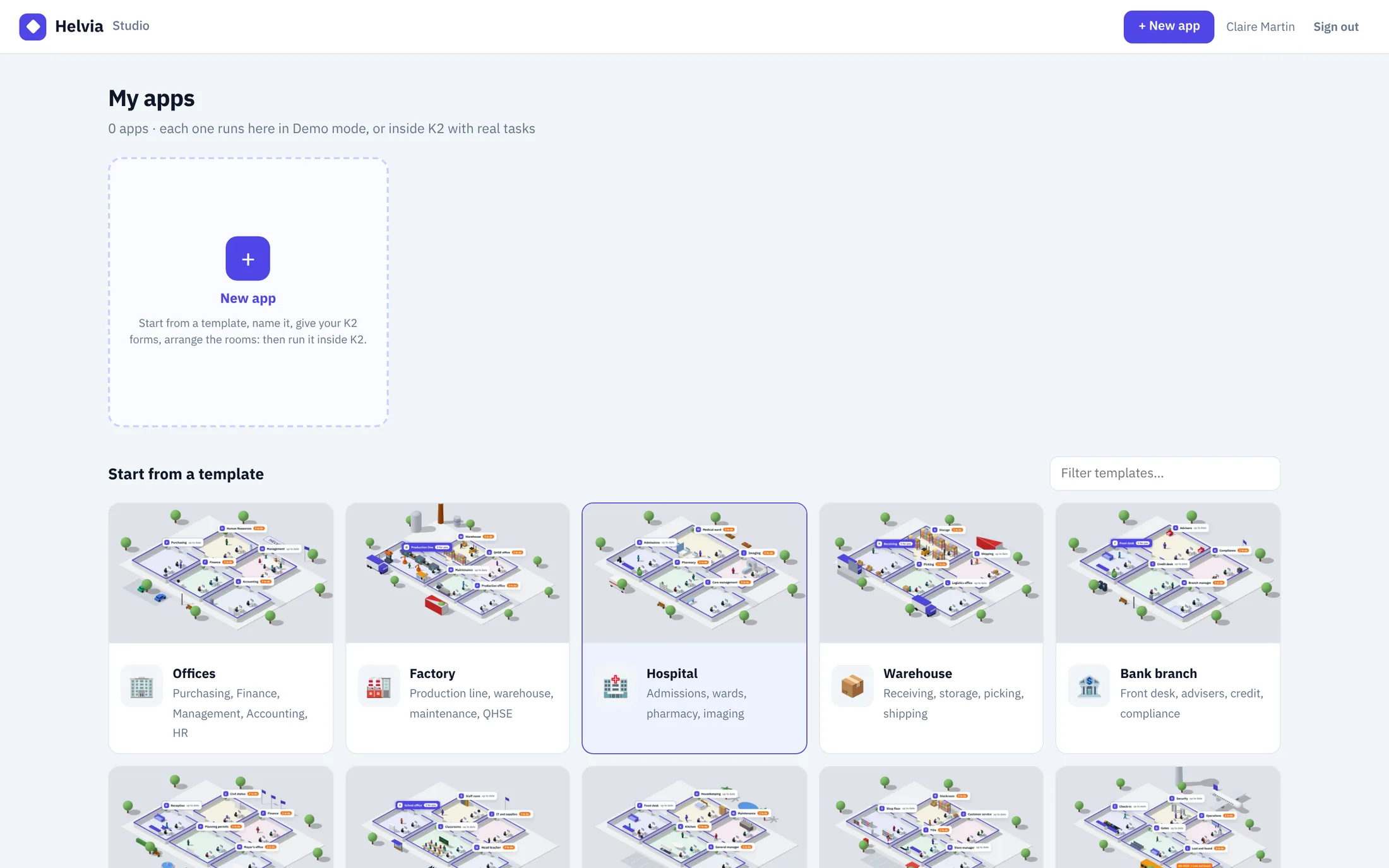
- Click a template, or + New app.
- Give the app a name; you can still change the template in the dialog.
- Click Create the app: the Studio opens on step 1, with the template's rooms, people, request types and decor in place.
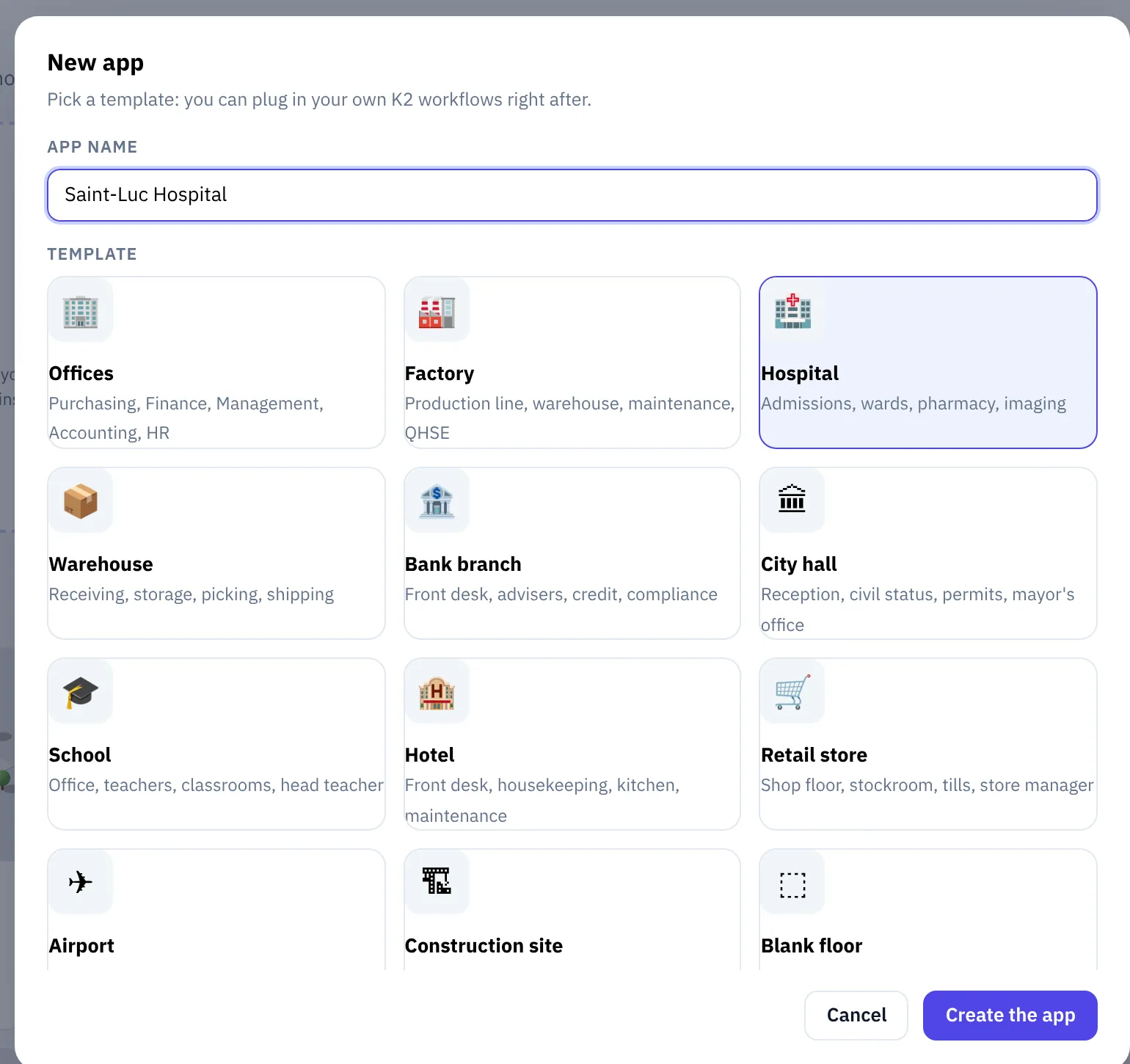
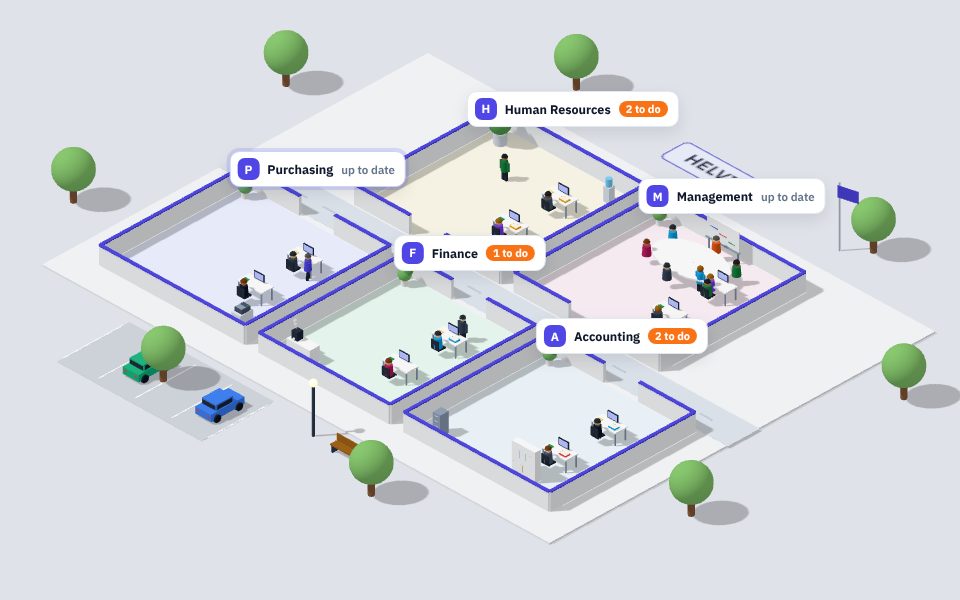
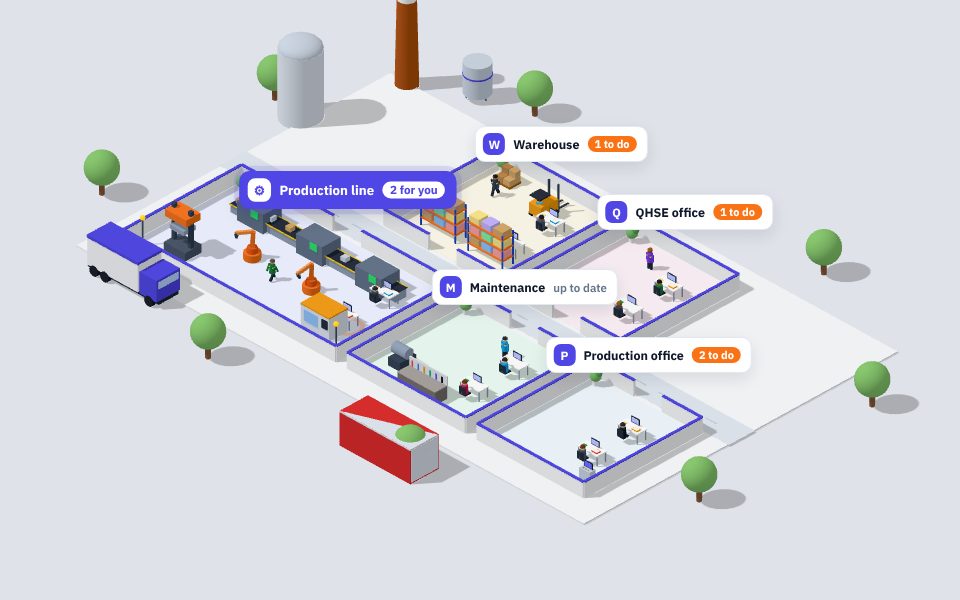
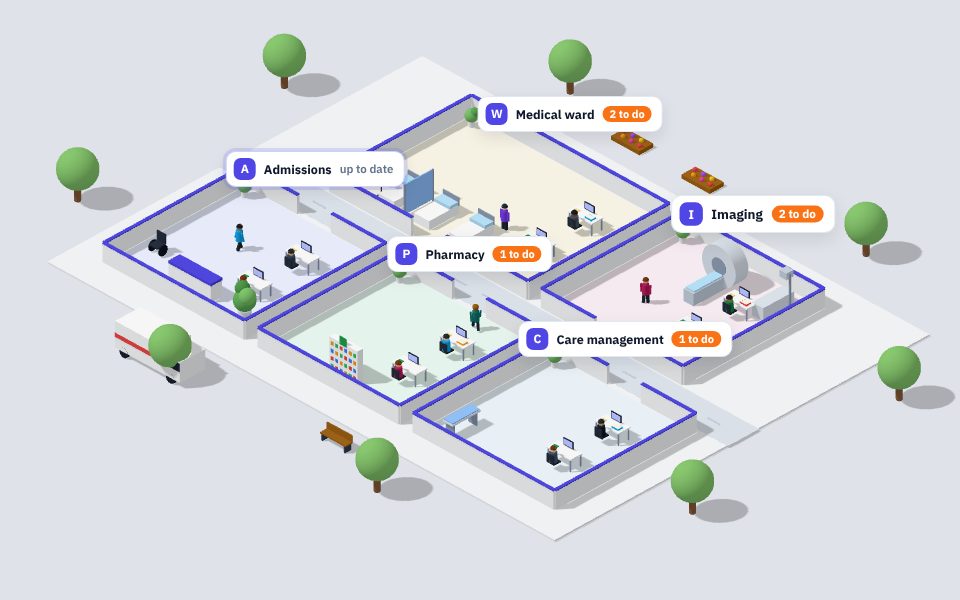
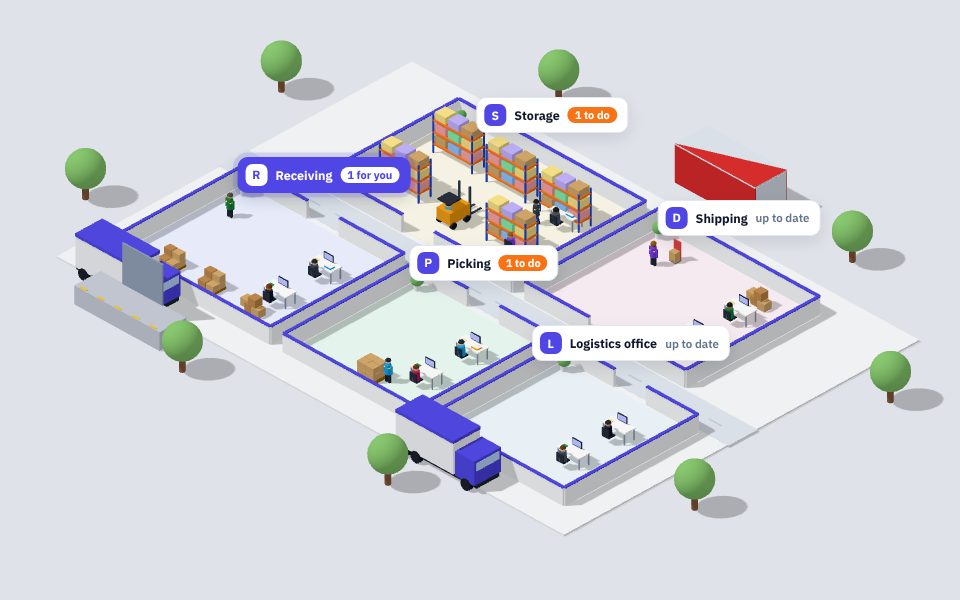
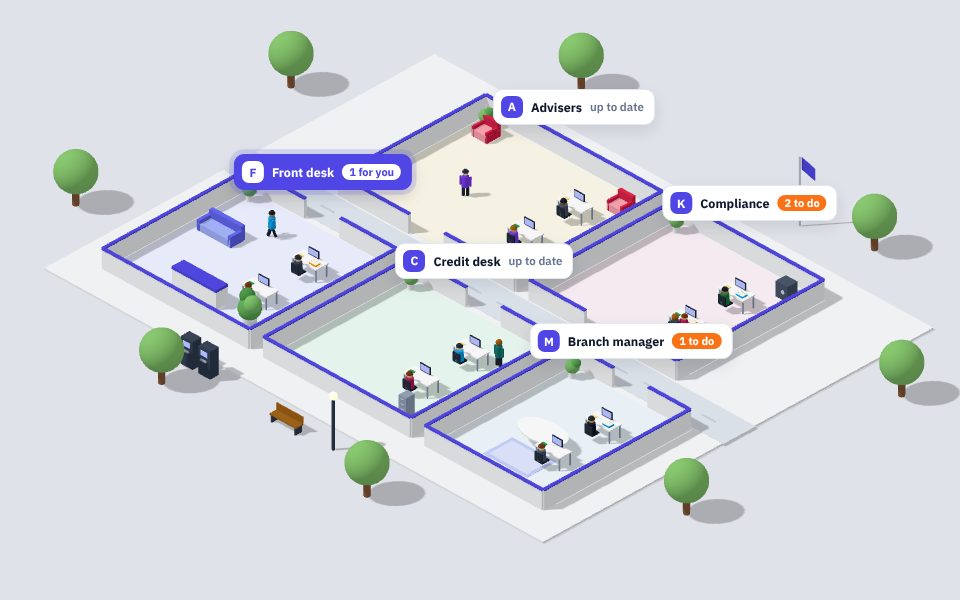
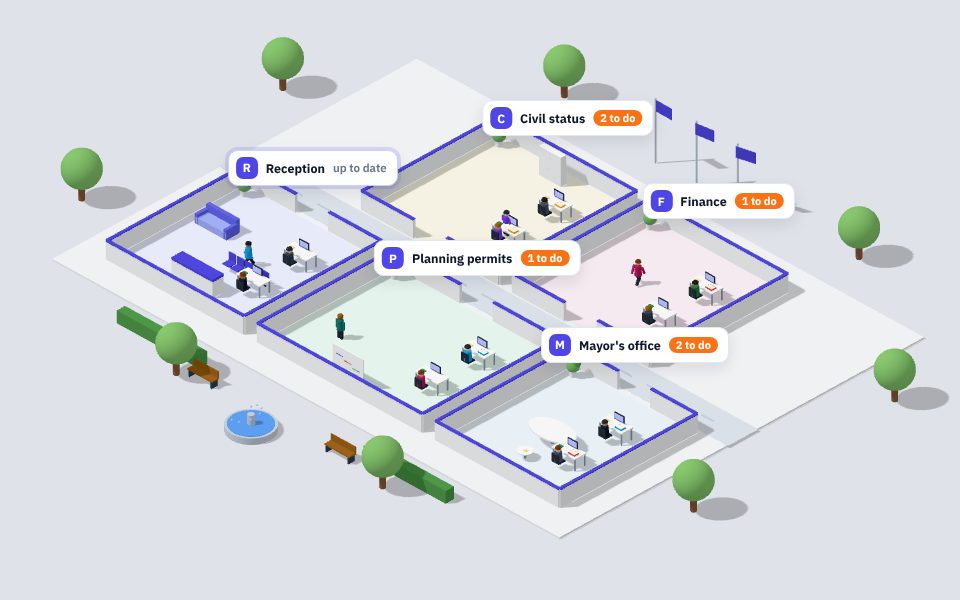
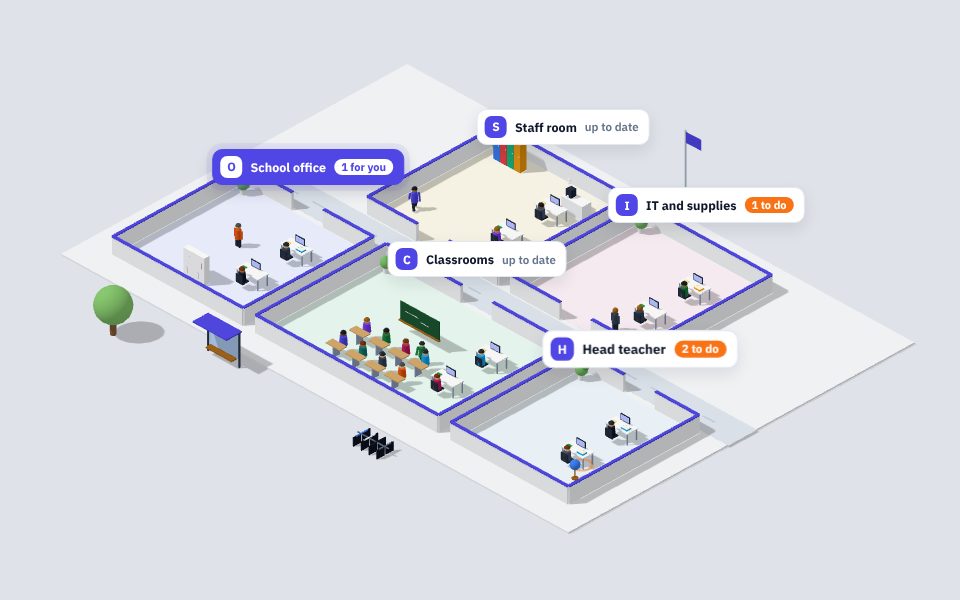
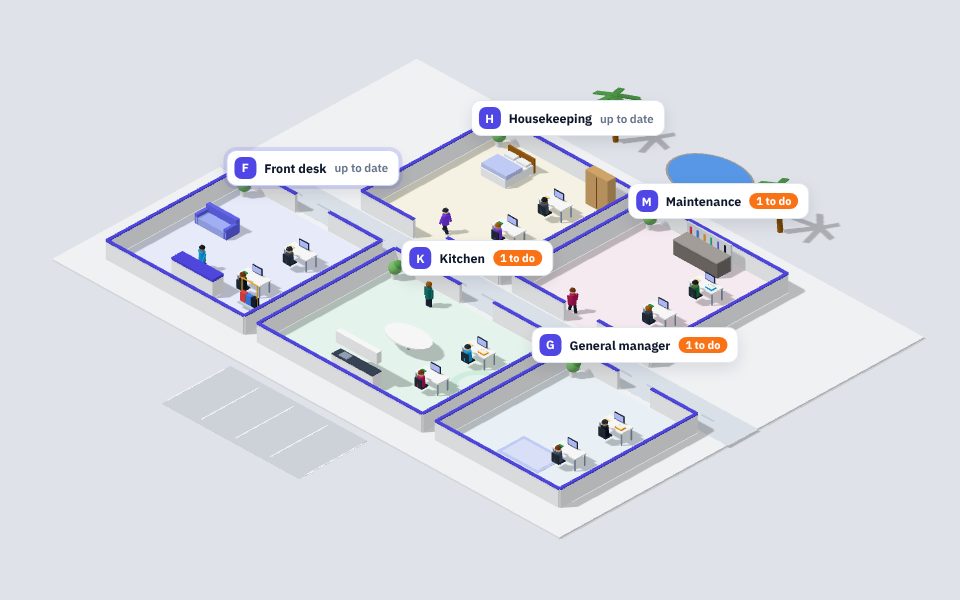
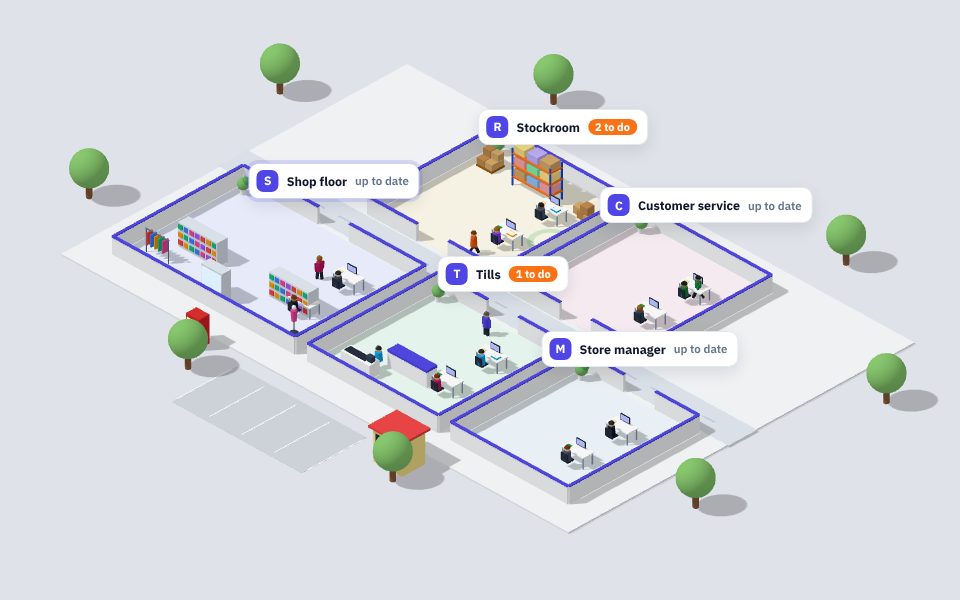
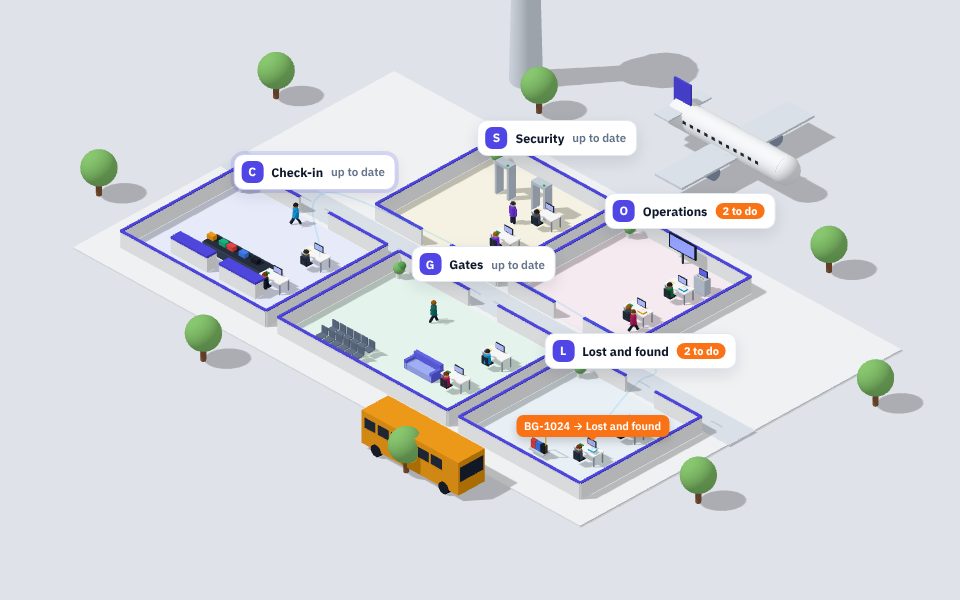
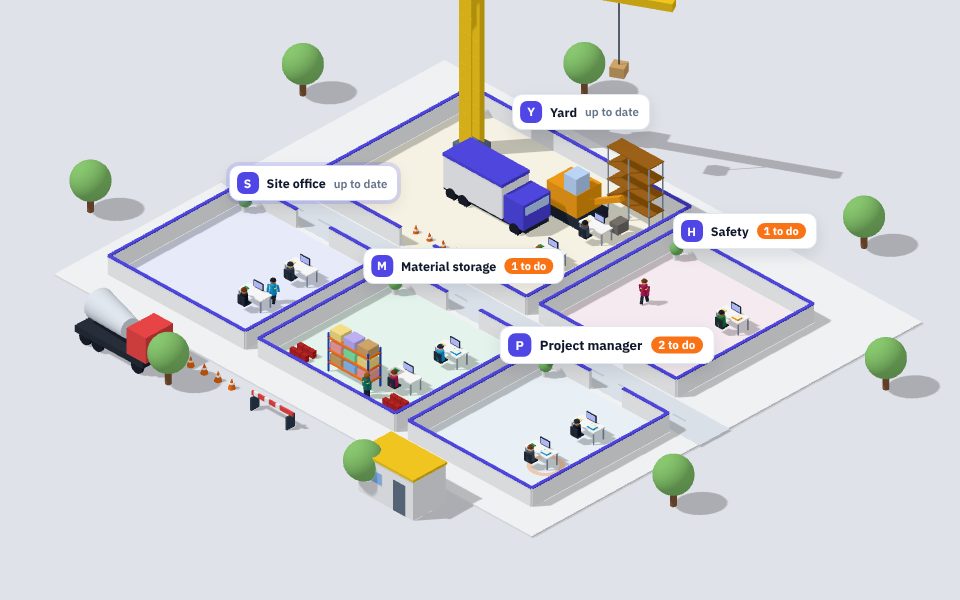
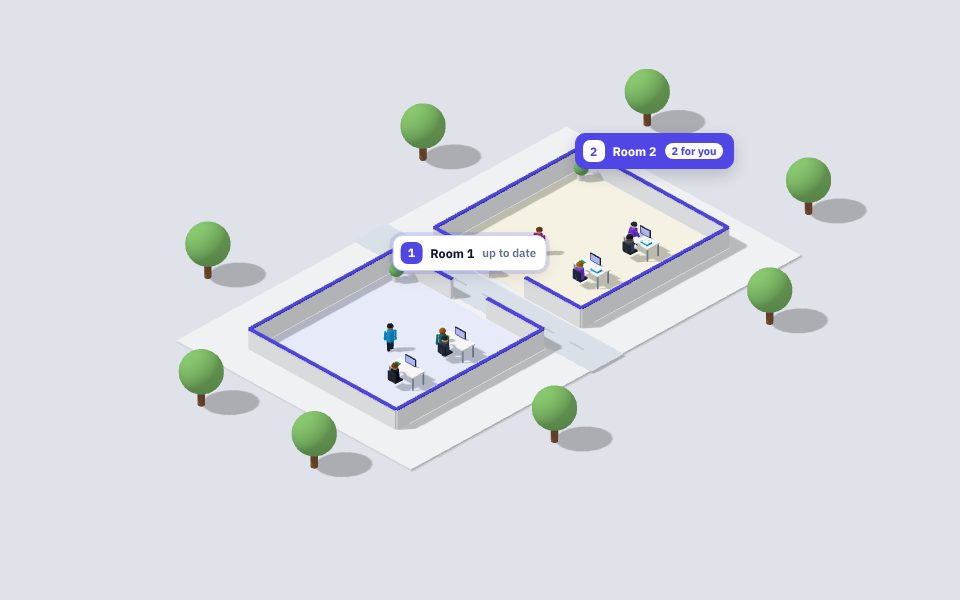
Which template?
Pick the world that looks like your organisation. Every template can become anything: rooms, people and objects are all editable.
Up to 20 apps per account. The draft is saved as you go.
03The app
 1234
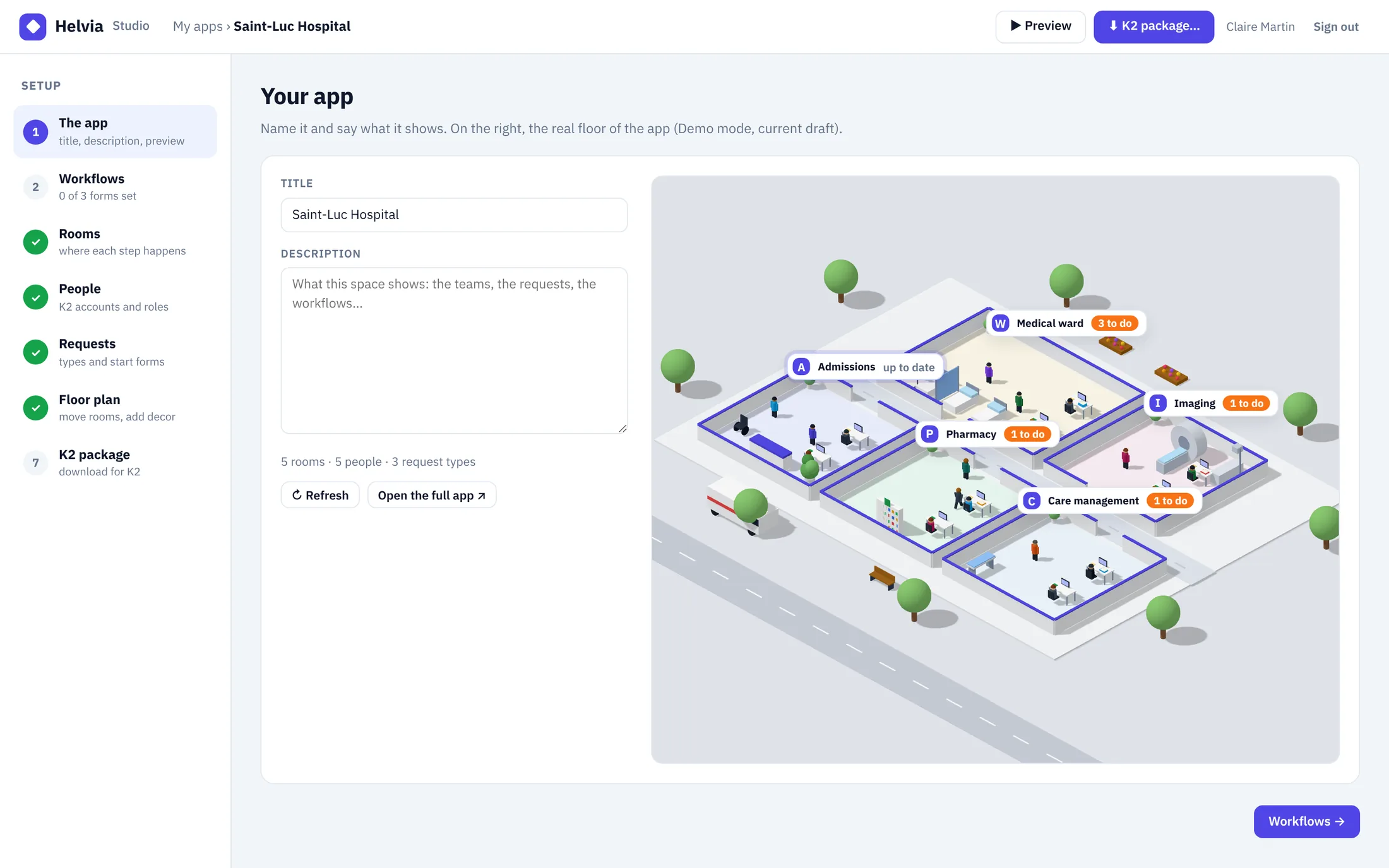
- 1The 7 steps of the Studio. A green tick means the step is complete.
- 2Title and description: shown in My apps and in the app.
- 3The floor, live, in Demo mode. Refresh after a change, Open the full app to see it with its menus.
- 4Preview (the full app in a new tab) and K2 package… (step 7).
04Workflows and K2 forms
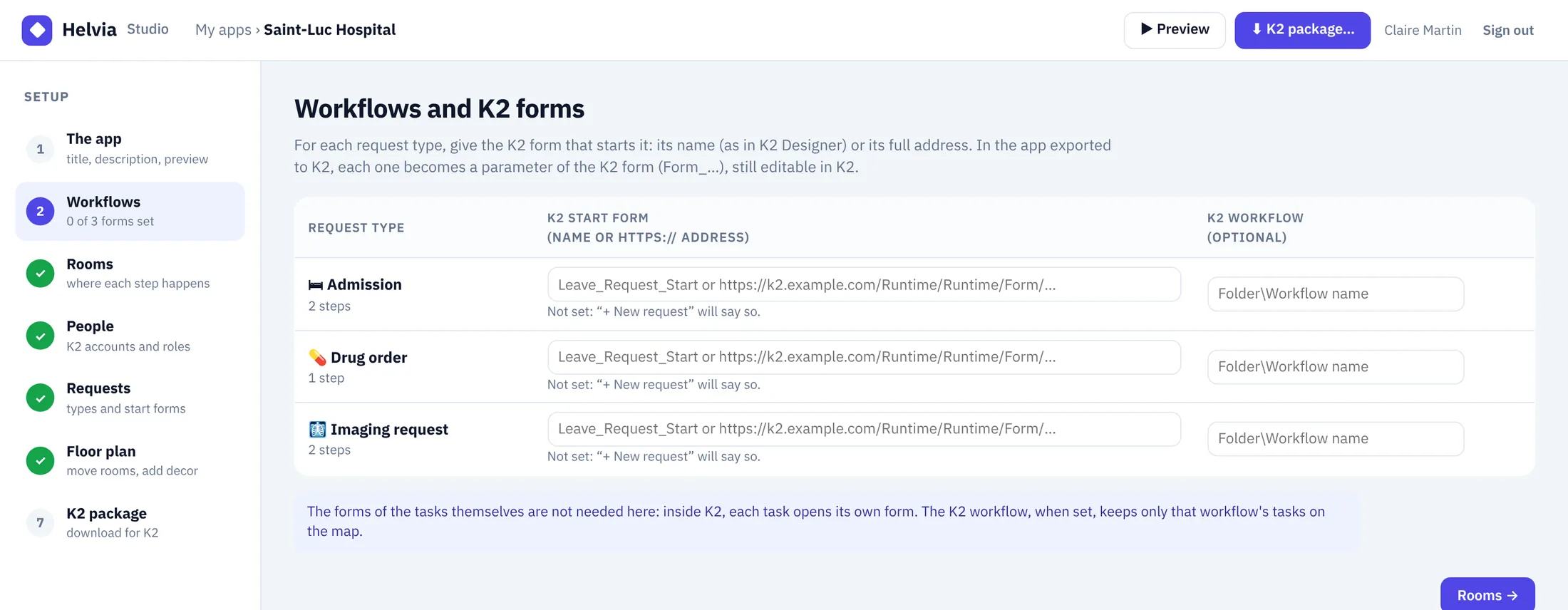
- K2 start form: the form that starts the request, by its name as in K2 Designer (for example
Leave_Request_Start) or its full address (https://…). The field checks what you type. Inside K2, “+ New request” opens this form. - K2 workflow (optional):
Folder\Workflow. When set, only the tasks of that workflow are shown for this request type. - The forms of the tasks are not needed: inside K2, each task opens its own form.
Form_Admission, Form_Drug_order…). You can change it later in K2 Designer, without a new export.05Rooms
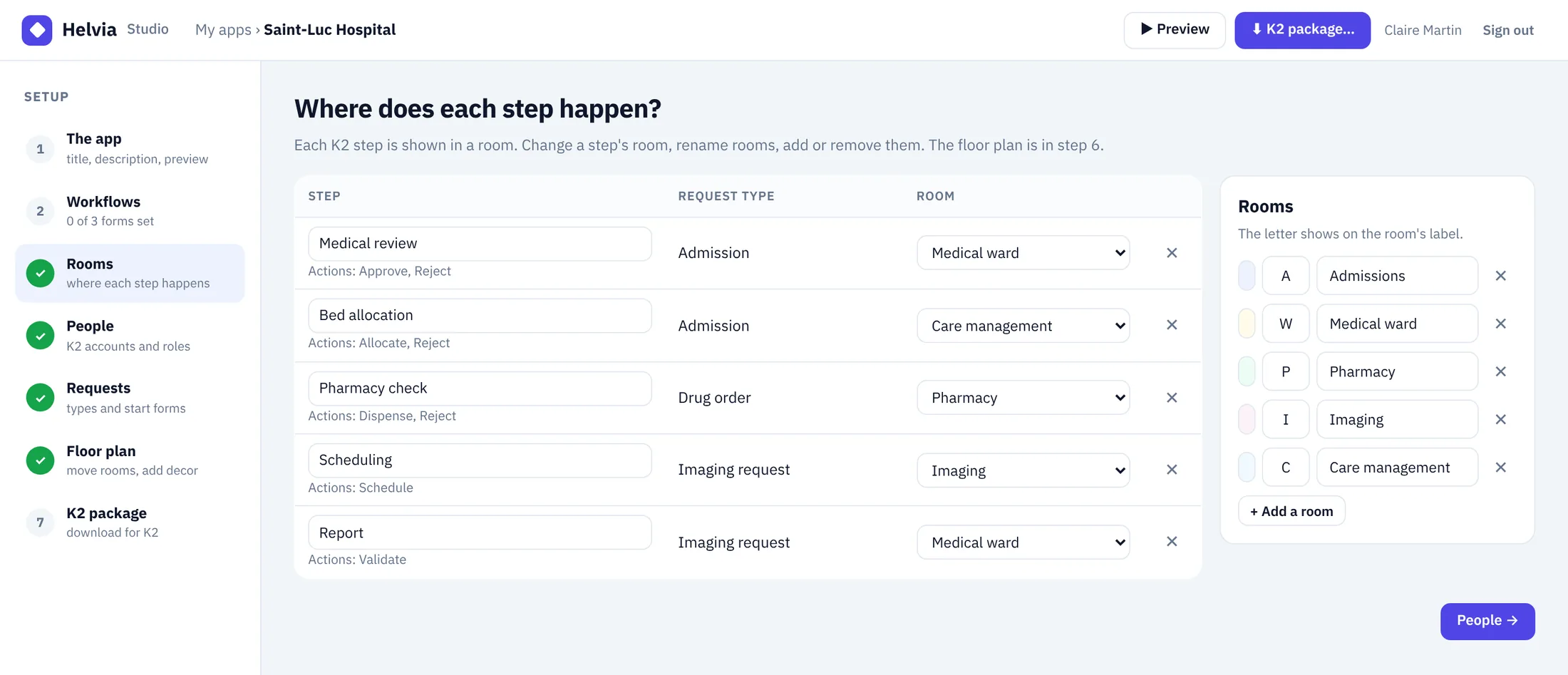
- Choose the room of each step. A request's folder moves to that room when the step is reached.
- Rename a step (the name shown on the folders); its K2 actions are listed under it.
- + Add a room, rename it, give it a letter (shown on its label), or remove it. Up to 24 rooms.
- The position and size of the rooms are set in step 6, Floor plan.
06People
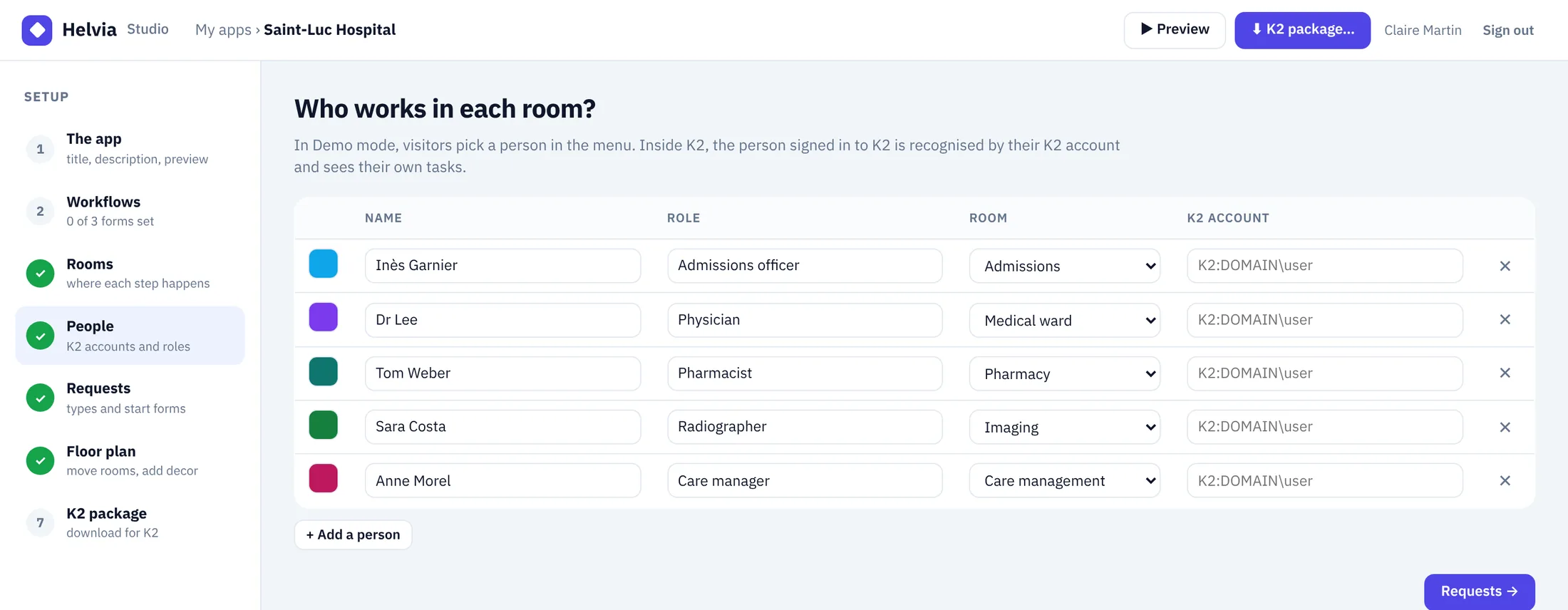
| Field | Use |
|---|---|
| Colour | Click the swatch to change the colour of the person's avatar. |
| Name, role | Shown in the menu, on the tasks and in the activity. |
| Room | Where the person sits; a desk is placed for them. |
| K2 account | For example K2:DOMAIN\user. Inside K2, the person signed in is recognised by this account and sees their own tasks. Someone signed in who is not in the list is added as a guest in the first room. |
07Request types
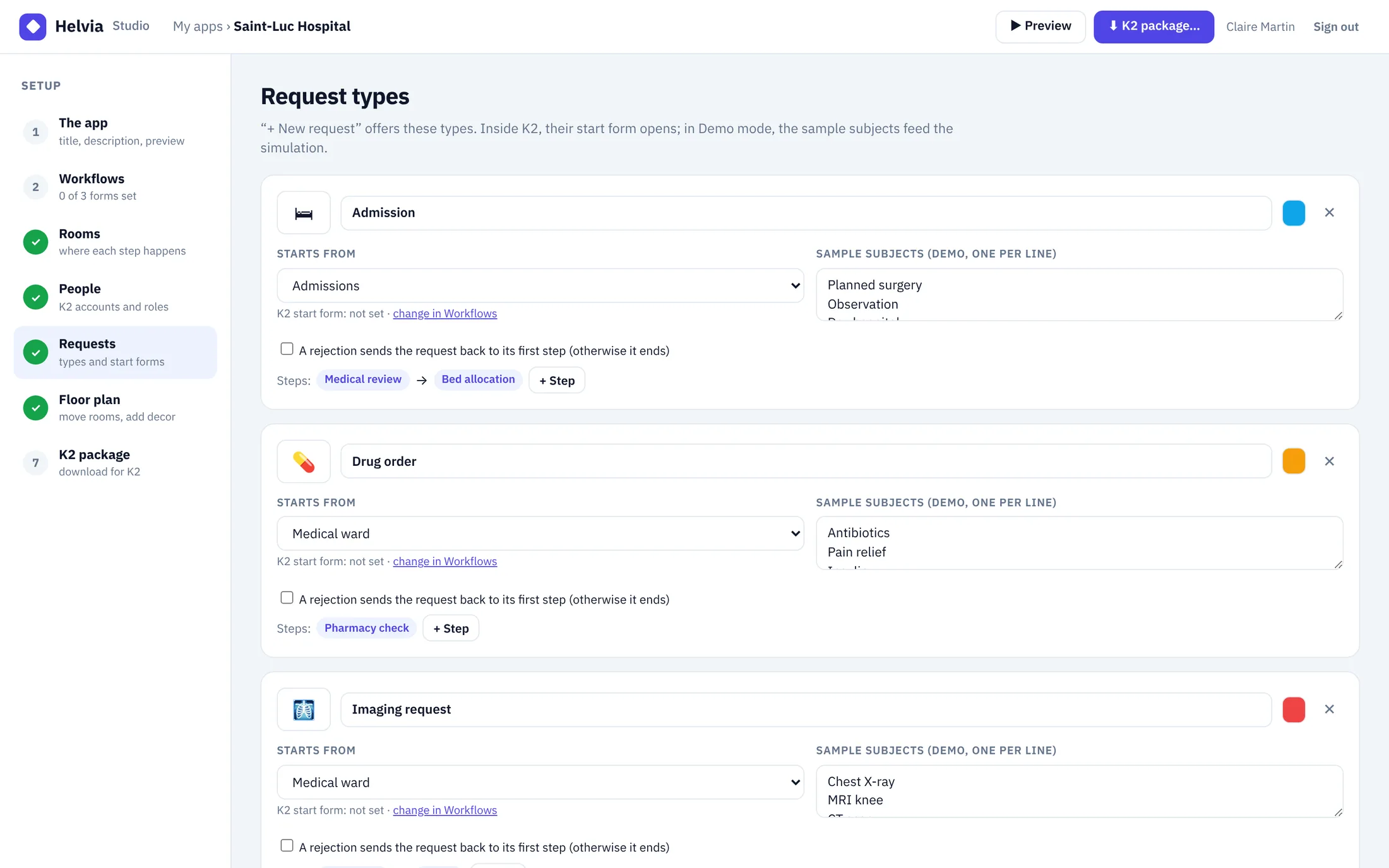
- Icon (an emoji), name and colour of its folders.
- Starts from: the room where new requests appear. The K2 start form is shown below; change it in step 2.
- Sample subjects (Demo only): one per line, used by the simulation (“Planned surgery”, “Chest X-ray”…).
- A rejection sends the request back to its first step; otherwise a rejection ends it.
- Steps: the path of the request, from room to room. + Step adds one.
Up to 12 request types per app.
08Floor plan
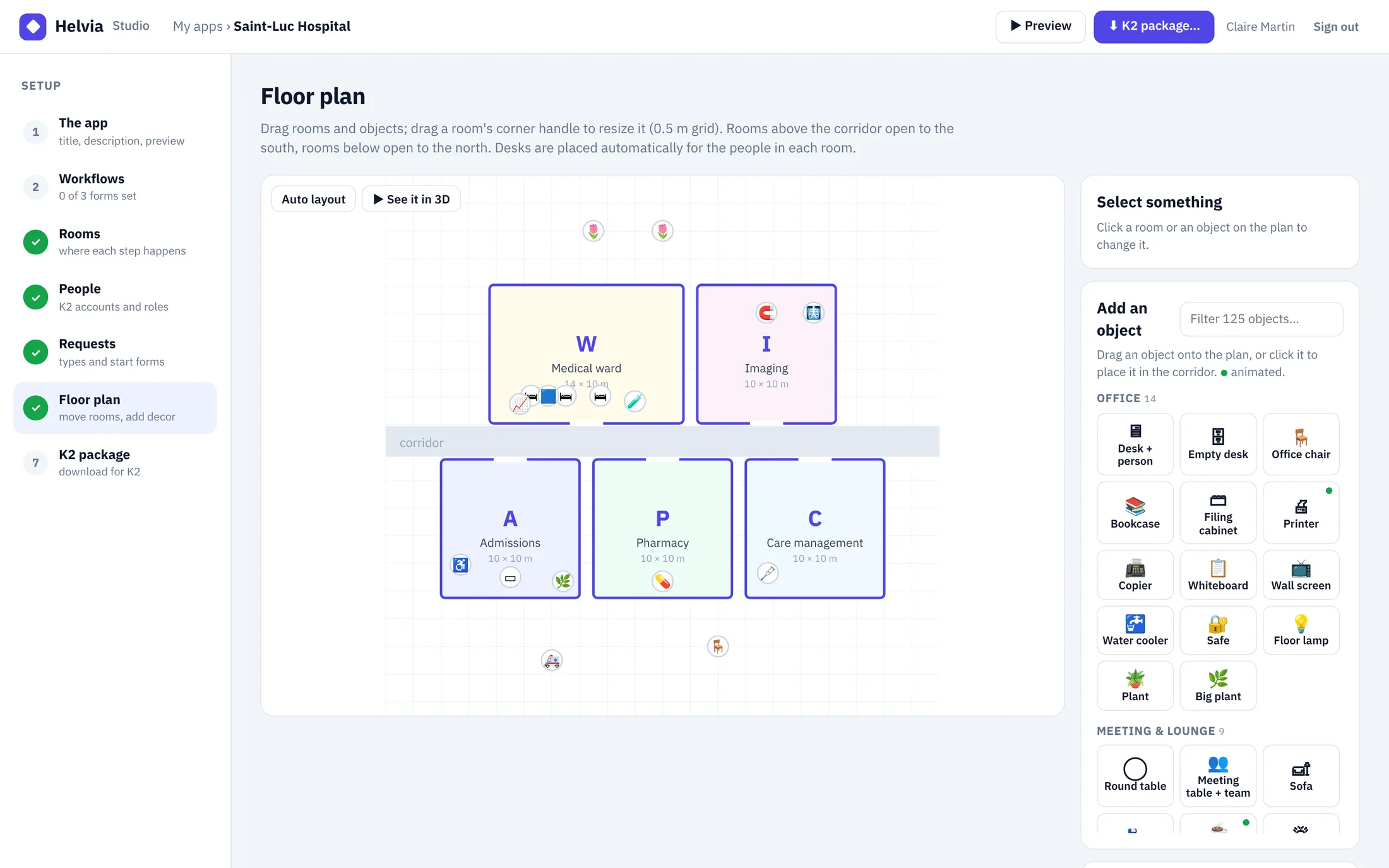 12345
- 1The steps of the Studio.
- 2Auto layout places the rooms around the corridor; See it in 3D opens the preview.
- 3The plan, seen from above, on a 0.5 m grid.
- 4The settings of the selected room or object.
- 5Add an object: 125 objects in 14 sections, with a filter.
Rooms
- Drag a room to move it; drag its bottom-right corner to resize it. Rooms above the corridor open to the south, rooms below it to the north.
- Select a room to set its width and depth (4 to 60 m), its door (north, south, west or east) and its number of desks (0 = one per person).
- Rooms that overlap are outlined in red.
Objects
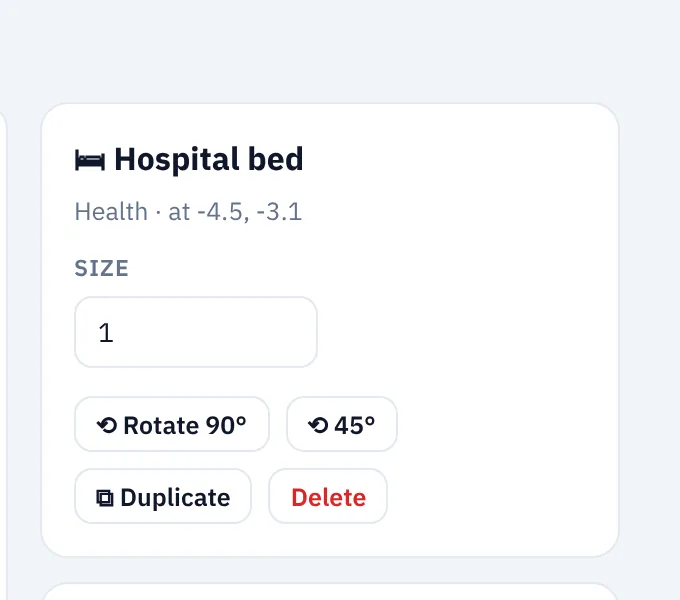
Drag an object from the palette onto the plan, or click it to place it in the corridor. Select it to change it:
- Size from 0.5 to 3, Rotate by 90° or 45°, Duplicate, Delete.
- Text for the floor logo and signs (40 characters).
- Length for conveyors, roads, hedges, fences and floor lines (1 to 40 m).
Up to 400 objects per app. Animated objects: Printer, Coffee machine, Fountain, Flagpole, Robot arm, Conveyor, Chimney, Warning light, Patient monitor, Baggage belt, Tower crane, Cement mixer.
Life in the scene
| Setting | Range | Effect |
|---|---|---|
| People walking | 0 to 40 | Characters going from room to room through the doors and the corridor. |
| Cars and vans | 0 to 12 | Traffic on the road south of the building. |
| Trucks | 0 to 4 | Trucks on the same road. |
| Speed | ×0.25 to ×3 | Speed of everything that moves. |
| Animated machines | on / off | Robots, conveyors, smoke, flags, monitors… |
09K2 package
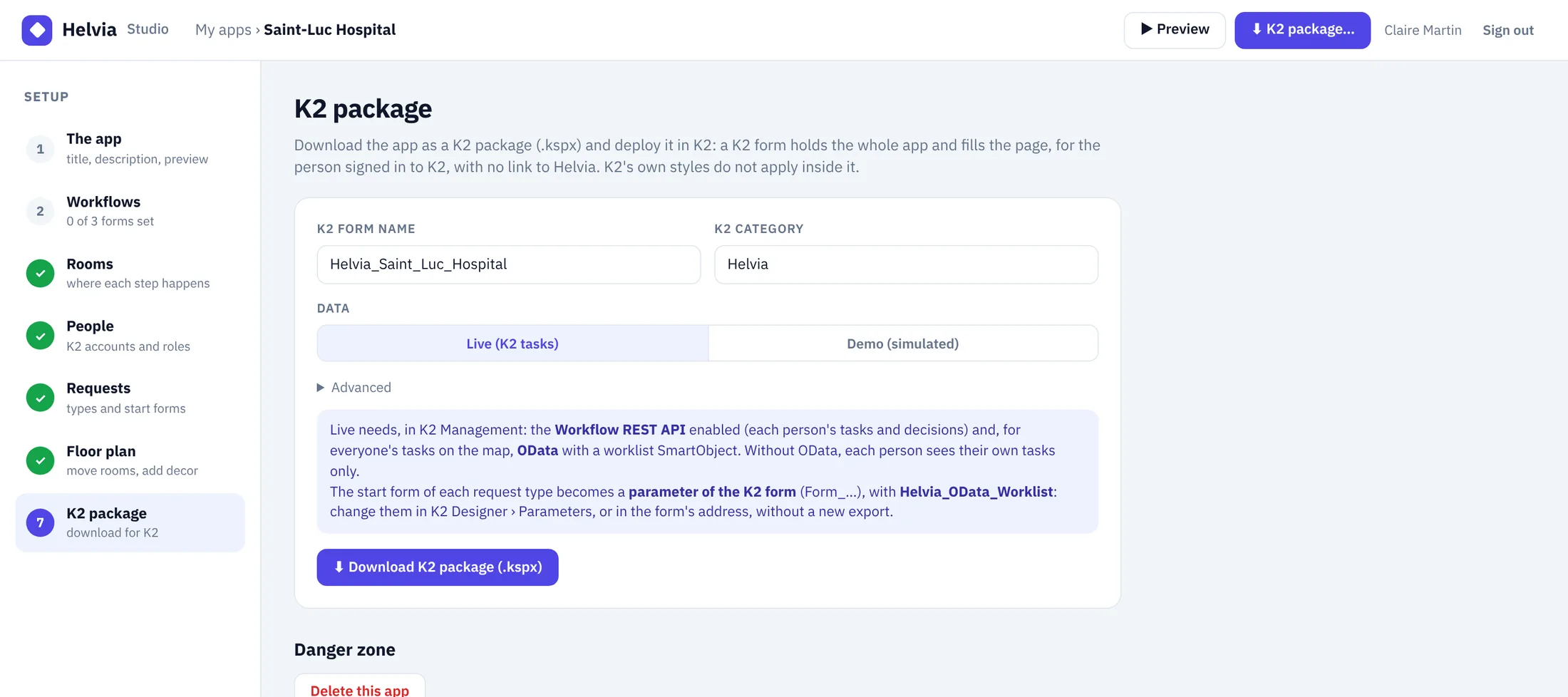
- Check the K2 form name (letters, digits and _, for example
Helvia_Saint_Luc_Hospital) and the K2 category. - Choose Live (K2 tasks) or Demo (simulated, no K2 call).
- Optional, under Advanced: the OData worklist entity set (empty: found automatically) and the refresh time (8 to 300 seconds, 12 by default).
- Click Download K2 package (.kspx). The package is always made from the current draft.
- Deploy it in K2 Management › Packages, then open the form: from K2 Designer, or at
/Runtime/Runtime/Form/<form name>/.
What the package contains
One K2 view and one K2 form. The view holds three data labels you can read in K2 Designer: Helvia HTML, Helvia CSS and Helvia JS (the 3D engine and your app). The app fills the page; K2's own styles do not apply inside it, and it has no link back to Helvia. Deploying a new package of the same app, with the same form name, updates the view and the form in place.
Form parameters
Change them in K2 Designer › form › Parameters, or in the form's address, without a new export.
| Parameter | Default | Use |
|---|---|---|
Form_<request type> | The start form set in step 2 | One per request type (for example Form_Admission). Empty: the type cannot be started, and the panel names the parameter to fill. |
Helvia_OData_Worklist | Advanced setting, or empty | Entity set of the worklist SmartObject. Empty: found automatically. |
10Using the app
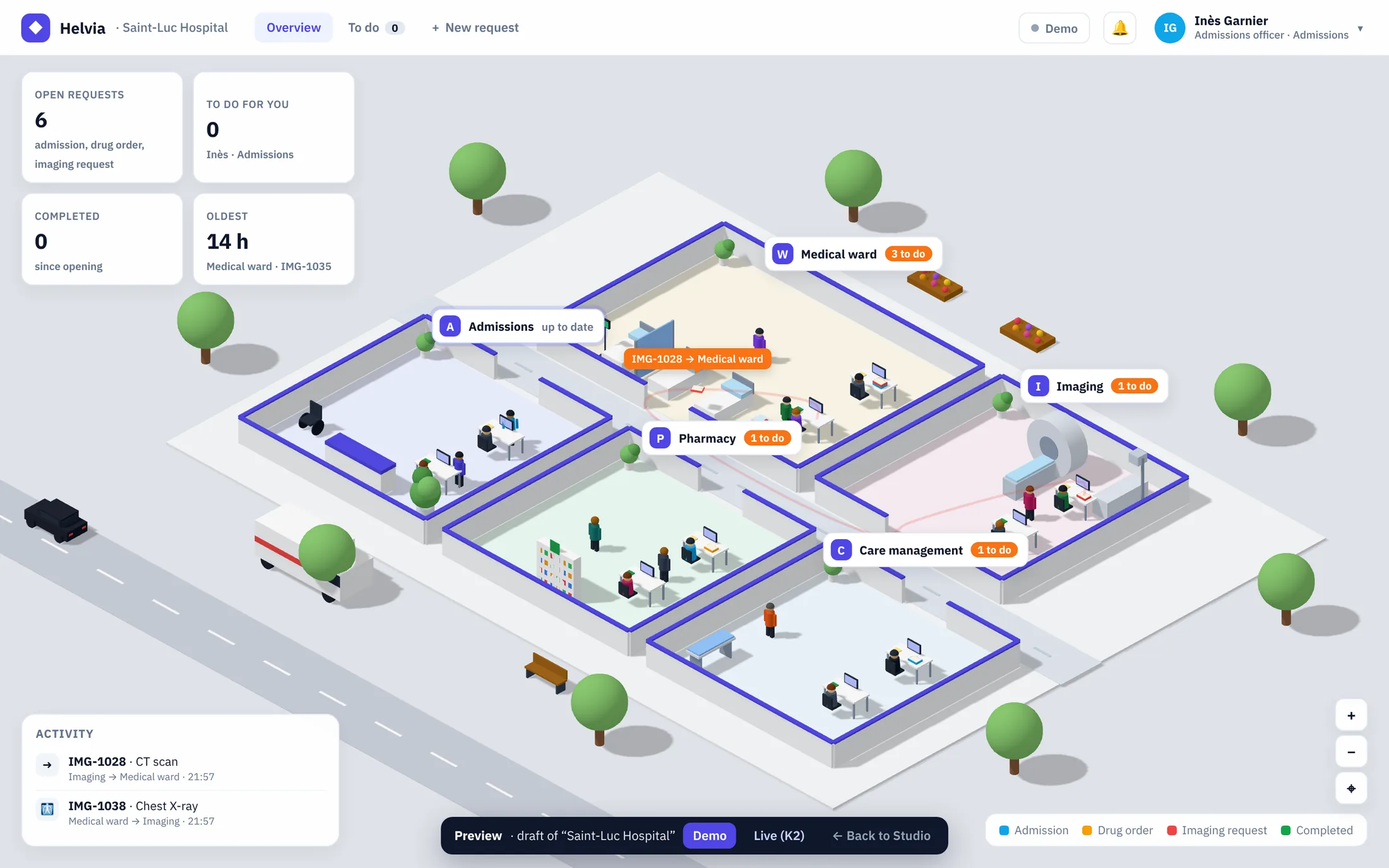
12345- 1Indicators: open requests, to do for you, completed, the oldest. Click one to see its list.
- 2Overview, To do (your tasks, also behind the bell) and + New request.
- 3Room labels: “3 to do” or “up to date”. Click a label, a room or a folder.
- 4Activity: the latest moves and decisions.
- 5The person: inside K2, the one signed in; in Demo, choose who you are.
A room, a task
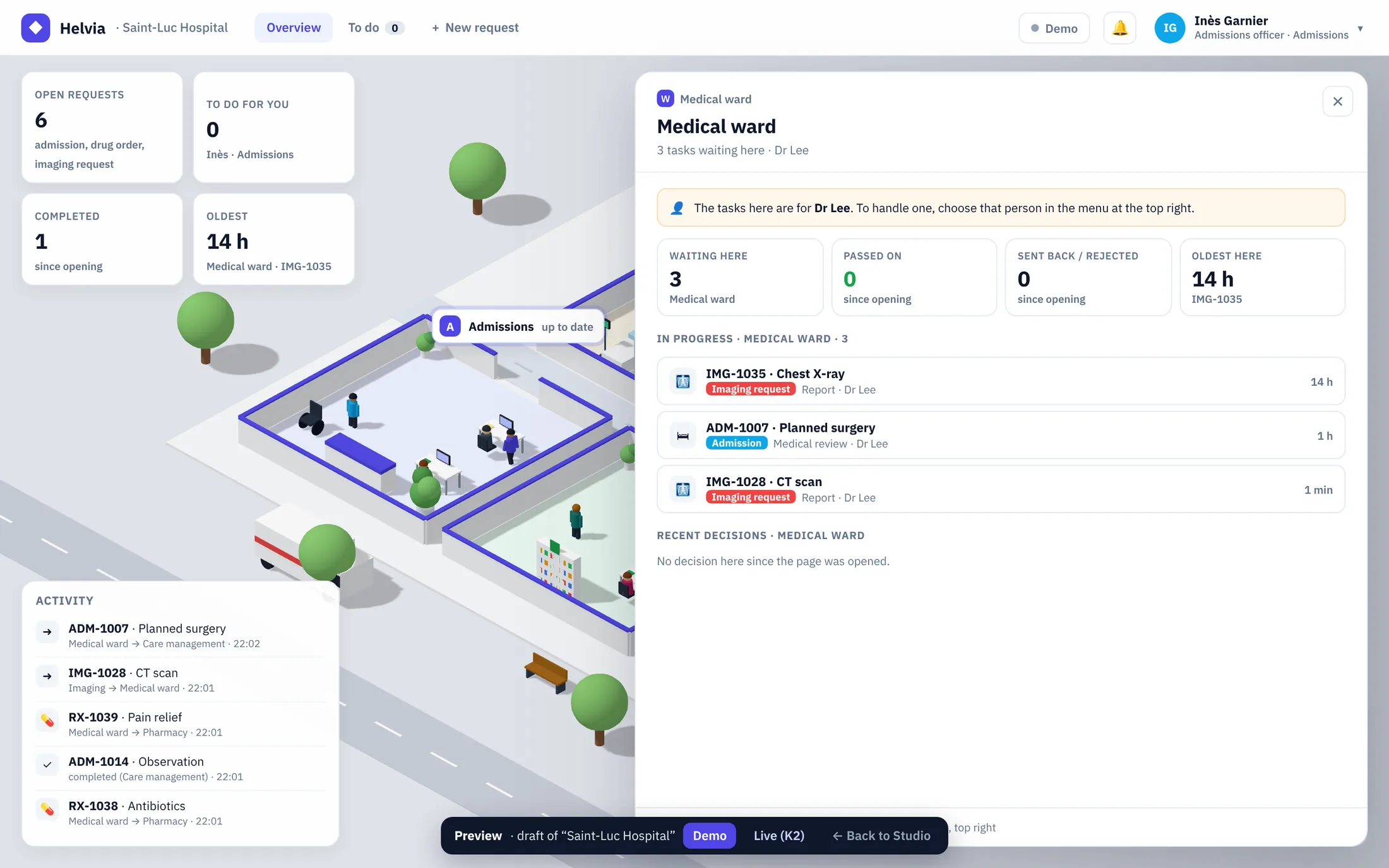
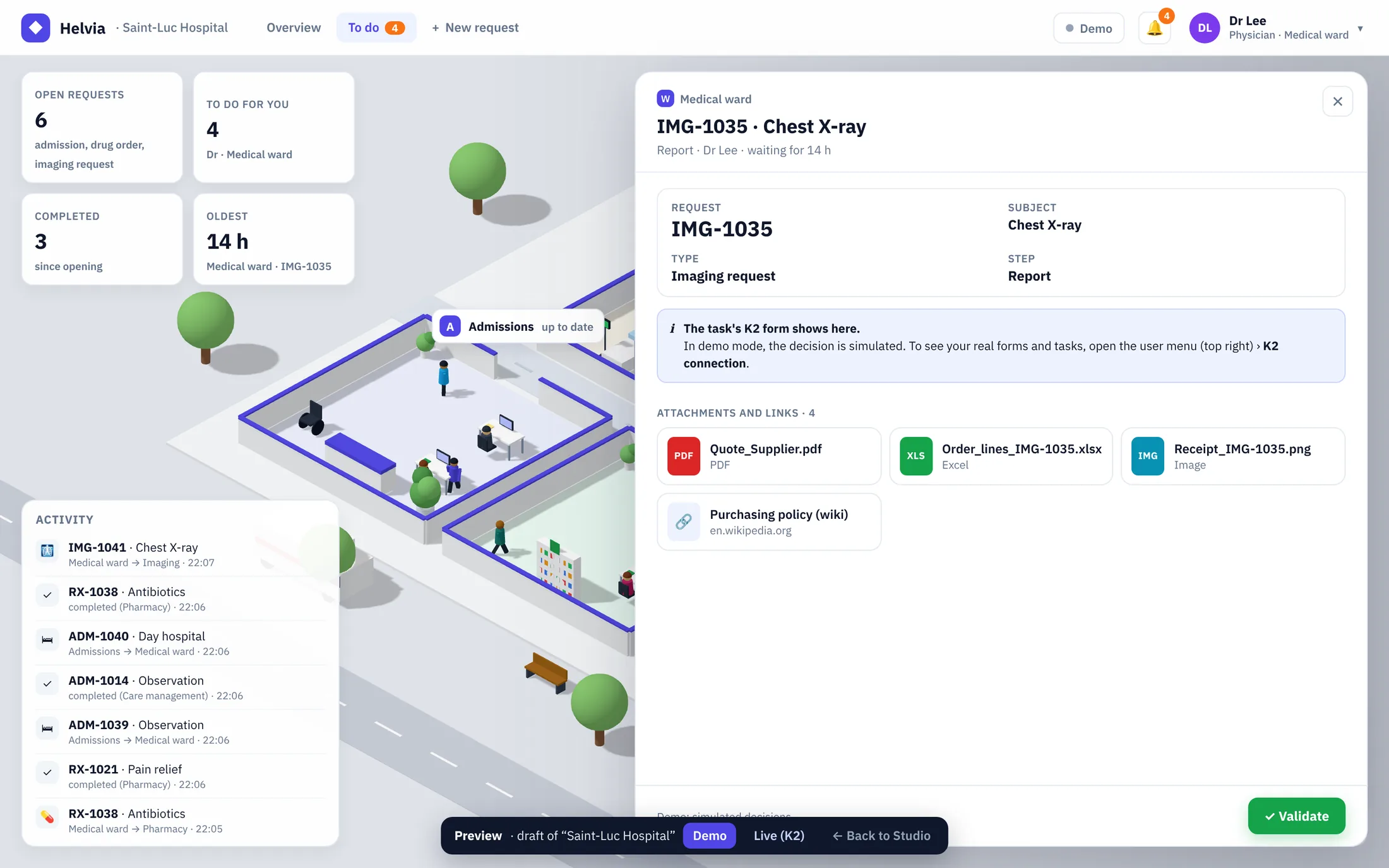
- Inside K2, the task's K2 form opens in the panel; decide with the form's own buttons. The map is read again afterwards.
- The task of another person opens read only.
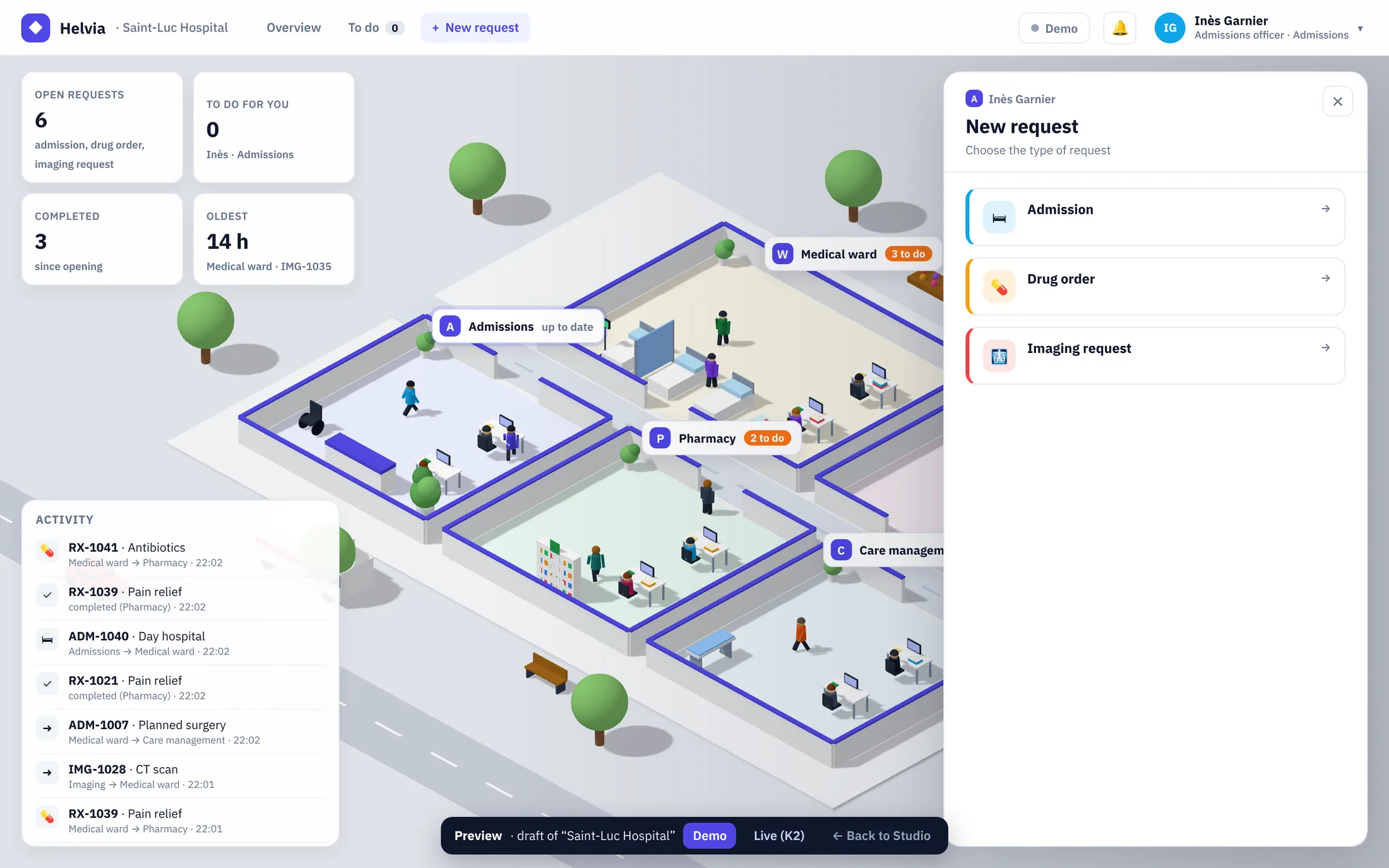
- + New request lists the request types; choose one and its K2 start form opens.
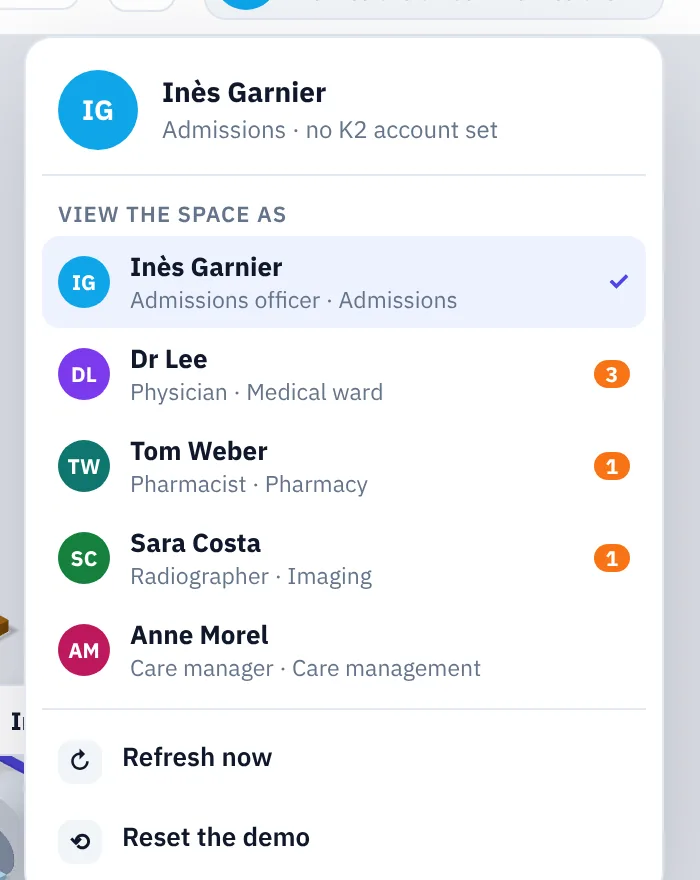
In Demo mode
The menu at the top right lets visitors view the space as each person, with the number of tasks waiting for them. Decisions are simulated, new folders appear by themselves, and Reset the demo starts again. Nothing is sent to K2.
11Designing a good space
A good Helvia space is understood in five seconds: where the work is, who has it, what is late. Resist the urge to furnish everything; the folders must remain the stars.
Six rules
1 · One room per team or step
Three to eight rooms read best. Merge rare steps into one room rather than adding tiny rooms nobody visits.
2 · Name rooms as people say them
“Pharmacy”, “Finance”, not the technical step names. Give each room a letter that stands out on its label.
3 · Follow the path of the work
Place rooms in the order of the steps so folders move in one direction. The start room near the entrance.
4 · One colour per request type
Distinct colours (blue, amber, red…) make the types readable at a glance, on the map and in the legend.
5 · Objects tell the story
A scanner in Imaging, racks in the warehouse: two or three typical objects per room are enough. Keep the corridor clear.
6 · Moderate life
Ten to twenty walkers and a few cars make the space feel alive. On modest computers, reduce them or turn animated machines off.
Three layouts to copy
Offices around a corridor
Approval flows that go from desk to desk. Start room near the entrance, managers at the end.
A line that flows
Production or logistics: rooms in the order of the work, so folders move left to right.
Front desk and back office
Public services, banks, hospitals: the room where requests start faces the visitors.
Before you deploy
- Check every K2 account in People: a person whose account does not match sees no task.
- Check every start form in Workflows (or plan to set the
Form_…parameters in K2). - Open Preview, pick a few people in the menu and follow a folder from its first room to its last.
- Deploy a Demo package first if the K2 APIs are not ready yet, to show the space in K2.
12Data and security
- The data stays in K2. Inside K2, the app reads K2 from the browser of the person signed in, with their own K2 session: their tasks (Workflow REST API), everyone's tasks (OData worklist) and their decisions. Nothing goes to Helvia; the Studio only stores the design of your apps.
- K2 permissions apply. The form buttons act for the account signed in to K2. A task of someone else opens read only.
- Demo mode makes no network call at all.
- The map is read again every 12 seconds by default (8 to 300, set in the package).
13Troubleshooting
| You see | Why | What to do |
|---|---|---|
| Status “Live · K2 (your tasks)” | The OData worklist is not readable: each person sees only their own tasks. | Publish Activity Instance Destination in OData, or give its entity set in Helvia_OData_Worklist. |
| “Could not read K2 tasks” | The Workflow REST API is off or refuses the session. | Enable it in K2 Management › Integration › APIs. |
| A request type says “not set” | Its Form_… parameter is empty. | Set the start form in step 2 and redeploy, or fill the parameter in K2 Designer. |
| “Task of a person who is not in this app” | The task belongs to an account missing from People. | Add the person with their exact K2 account. |
| I see no task, but I have some in K2 | Your K2 account does not match the one in People, or the request type filters another workflow. | Check the account in People and the K2 workflow in step 2. |
| “The task has no form link” | The task uses a basic task form without an address. | Give the task a K2 form in the workflow. |
| “No ID data field found in the workflow” | The form needs the item ID, and the workflow has no ID data field. | Add an ID data field to the workflow, or open the task from the K2 worklist. |
| Studio changes are not in K2 | K2 runs the last package deployed. | Download the package again and deploy it. |
| The 3D is slow | Too many walkers, vehicles or animated objects for the computer. | Lower them in Floor plan › Life in the scene. |